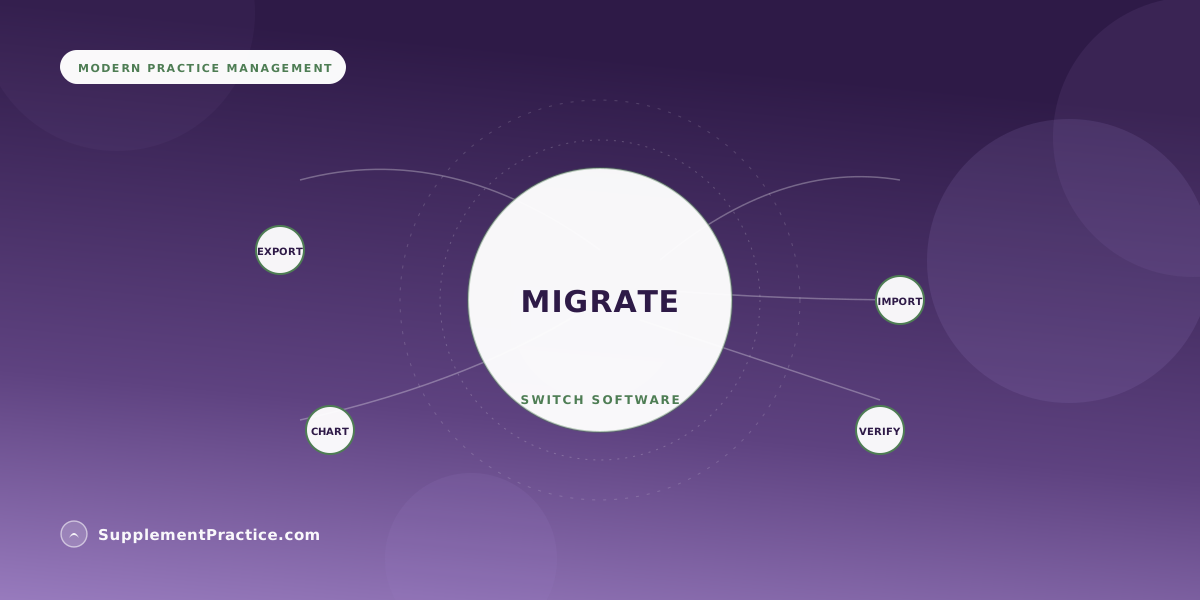
You switch practice management software without losing patient data by treating the migration as a five-step process: export a complete backup from the old system, map every field to the new one, import a small test batch and verify it record-by-record, run both systems in parallel briefly, then cut over. The data loss people fear almost always comes from skipping the mapping and verification steps, not from the export itself — get those two right and nothing is lost.
How to Migrate Without Losing a Record
- Export a full backup first — demographics, charts, protocols, documents, and history
- Map every field between old and new before importing anything
- Import a small test batch and verify it record-by-record before the full run
- Run old and new systems in parallel for a short overlap to catch gaps
- Keep the old system read-only after cutover — do not delete it immediately
- Sign a Business Associate Agreement with the new vendor before any PHI moves
- Budget for verification time; the export is fast, checking is the real work
The data loss you fear comes from skipping steps, not from moving
Practitioners stay on software they have outgrown for one reason: the fear that switching means losing years of charts, protocols, and patient history. That fear is reasonable but misdirected. Migrations rarely fail at the export — modern systems export cleanly. They fail when someone imports a spreadsheet into a new system without checking that the columns landed where they should, discovers three weeks later that every allergy field is blank, and has no backup to fall back on. The move is safe. Skipping the discipline around it is what loses data.
So the goal is not to find magic software that migrates itself. It is to run a boring, verifiable process where nothing gets deleted until you have proven it arrived. If you are still deciding which system to move to, our buyer's guide for small wellness clinics is the place to start; this article assumes you have chosen and now need to move safely.
Step one: export a complete backup before anything else
Before you touch the new system, pull a full export from the old one — patient demographics, clinical notes, supplement protocols, uploaded documents, lab results, invoices, and appointment history. Get it in a portable format (CSV for structured data, original files for documents). This export is your safety net; store a copy somewhere the migration cannot touch. If your current vendor makes export difficult, that friction is itself a lesson about vendor lock-in, and it is exactly why our take on all-in-one software replacing the stack stresses owning your own data.
Step two: map every field before you import
This is the step people skip and the step that loses data. Sit down with the export and the new system side by side, and decide where each field goes. The old “chief complaint” box maps to which field in the new chart? Where do supplement protocols land? What happens to custom fields the new system has no home for? Charting structures differ between systems, and our guide to charting software for integrative practices shows how much these structures can vary. Write the mapping down. A documented field map is the difference between a clean import and a silent one that drops data you will not notice for months.
Step three: import a test batch and verify record-by-record
Never import your whole database first. Import ten to twenty representative patients — a simple one, a complex one, one with lots of documents, one with an active protocol — and then open each of those records in the new system and check every field against the old. Did the allergies come through? The protocol? The last three visit notes? Only once a test batch verifies clean do you run the full import. When you migrate to a system built for functional and integrative work, the fit matters; our piece on choosing an EHR for a functional medicine practice covers what to check for.
Step four and five: run in parallel, then cut over
For a short window, keep the old system live and read-only while the new one becomes your working record. This overlap catches anything the import missed — a patient calls, you look them up in the new system, and if something is wrong you still have the old one to check. After you are confident, cut over fully but keep the old system archived and read-only for your legal retention period. Do not delete it the day you go live.
Decide what actually needs to move
Not every byte in your old system is worth migrating, and trying to move everything perfectly is how migrations stall for months. Split your data into three buckets. The first is active clinical data — current patients, open protocols, recent history — which must come across cleanly and completely. The second is archival data you are legally required to keep but rarely touch; this can often stay in the old system in read-only form rather than being imported, as long as you can retrieve it. The third is genuine junk — duplicate records, test entries, dead accounts — which is worth leaving behind so you do not pay to carry it forward.
Being deliberate about these buckets shrinks the migration to a size you can actually verify by hand. A solo practice with two thousand lifetime patients might have four hundred active ones; migrating and checking four hundred records carefully beats importing two thousand carelessly. The goal is not to move the most data — it is to move the right data with zero loss and prove it. Write the buckets down before you touch either system, because the act of sorting forces the questions that trip up migrations later, like where an old custom field should go and whether you still need it, while you have time to answer them calmly.
A chiropractor in Arizona who moved eight years of charts cleanly
Dr. Ray Coleman had eight years of records in an aging system that no longer supported his growing supplement dispensary. He dreaded the switch. Instead of a big-bang cutover, he ran the five-step process: full export to backup, a written field map, a twenty-patient test batch he checked by hand, then a two-week parallel run before going live on Supplement Practice.
The test batch caught the one real problem — his old “supplement notes” field had no obvious home — and he fixed the mapping before the full import instead of after. When he cut over, not a single record was missing. He kept the old system archived and read-only for his retention period, and never needed it. The migration he had feared for two years took a focused week.
| Step | What You Do | What It Prevents |
|---|---|---|
| 1. Export | Full backup in portable formats | Total loss if import fails |
| 2. Map | Document where every field goes | Silent dropped fields |
| 3. Test batch | Import and verify 10-20 records by hand | Repeating an error across the whole database |
| 4. Parallel run | Old system read-only alongside new | Being stranded if something is missing |
| 5. Cutover | Go live, archive old system | Losing history before retention period ends |
Common migration mistakes
- Importing before mapping. Dumping an export into a new system unchecked is how allergy and protocol fields silently vanish.
- Skipping the test batch. A full import repeats every mapping error across thousands of records at once.
- Deleting the old system on go-live day. Keep it archived and read-only through your retention period as your last safety net.
- Moving PHI without a signed BAA. Any vendor touching patient data needs a Business Associate Agreement in place first.
- Underbudgeting verification time. The export is quick; checking records by hand is the real work, and rushing it is where data gets lost.
The compliance layer you cannot skip
Because you are moving protected health information, HIPAA applies to the whole process. Sign a Business Associate Agreement with the new vendor before any PHI moves, encrypt the export in transit and at rest, and limit who can touch the migration files. One practical safeguard is to assign a single person to own the migration end to end, even in a small practice — fragmented ownership is where files get half-imported and nobody notices the gap. That owner keeps the field map, runs the test batch, signs off on the parallel run, and makes the final call to cut over; a named owner with a checklist loses far less data than three people each assuming someone else checked. Record-retention requirements — how long you must keep the old data — vary by state, by profession, and change over time, so this is general guidance, not legal advice. Verify your retention period with your state board and a qualified attorney before you archive or ever delete the old system, and check current HIPAA Security Rule expectations for how the data is handled in transit.
Frequently asked questions
Will I lose my charts when I switch practice software?
Not if you follow the process. Data loss comes from skipping the field-mapping and verification steps, not from the export itself. Export a full backup, map every field, and verify a test batch record-by-record before the full import — done that way, nothing is lost.
How long does a practice software migration take?
The export is fast; the verification is the real work. A small solo practice can migrate in a focused week, including a short parallel run where the old system stays read-only. Budget most of your time for checking records by hand, not for the technical import.
Do I need a BAA before migrating patient data?
Yes. Any vendor that touches protected health information needs a signed Business Associate Agreement in place before any PHI moves. Encrypt the export in transit and at rest, and review the HIPAA basics for what actually counts as compliant.
Can I delete the old system once I go live?
Not right away. Keep it archived and read-only through your record-retention period as a safety net and a legal requirement. Retention rules vary by state and profession, so verify yours with your state board and a qualified attorney before deleting anything.
What if my current vendor makes exporting difficult?
That friction is itself a warning about vendor lock-in. Request a full data export in writing — you have a right to your patient data — and if the vendor stalls, escalate. Owning your own data is exactly why all-in-one systems emphasize portability.
Where to go next
Read our buyer's guide for small wellness clinics, how to choose an EHR for functional medicine, and why all-in-one software is replacing the stack.